Remote Management: Why You Need It & How to Connect
31 Aug 2026, 06:15:52
Remote Management is the ability to manage a server remotely at the hardware level, independently of the installed operating system. It is especially useful if the server stops responding via SSH or RDP, the operating system becomes unresponsive, or the server fails to boot.Depending on the server manufacturer, a different remote management controller is used:
- Dell — iDRAC;
- Fujitsu — iRMC;
- HPE — iLO;
- ASRock Rack — BMC/IPMI.
Remote management may be required if:
- the server does not respond via SSH or RDP;
- the operating system has become unresponsive;
- the server does not boot;
- you need to check the boot process;
- you need to access the BIOS/UEFI;
- you need to perform a forced reboot;
- you need to check for hardware errors;
- you need to reinstall the operating system.
How to Connect to Remote Management
To connect, you need to know the IP address of the management controller, as well as the login and password.The web interface is usually available via HTTPS:
https://controller-IP-address
For example:
https://192.0.2.10Open the address in a browser and log in. After opening the address in a browser, you may see a warning about a self-signed SSL certificate — this is normal.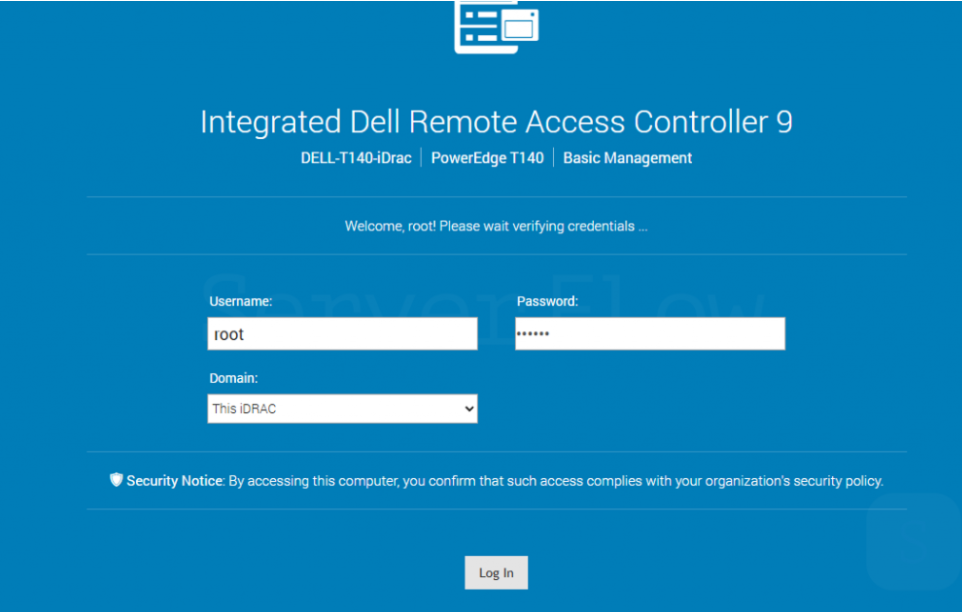
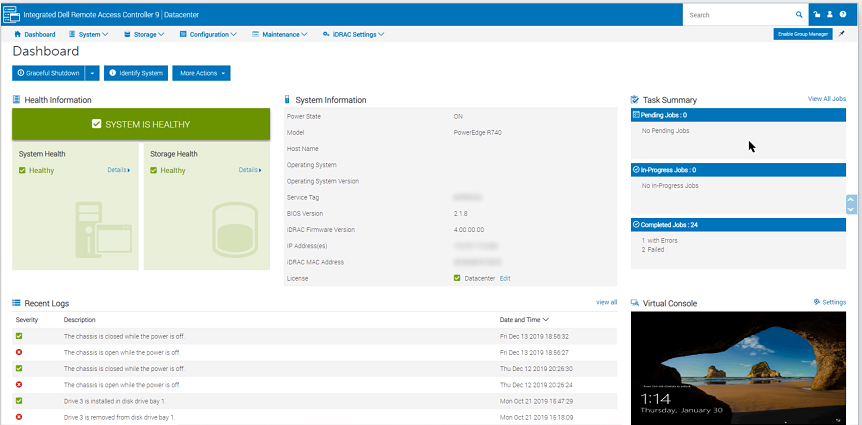
After authentication, the controller interface will open, providing access to the available server remote management functions.
Brief Overview of the Controllers
Dell iDRAC
Used in Dell PowerEdge servers. It provides a remote console, power management, hardware monitoring, and virtual media support. The available features depend on the version and license (Express / Enterprise).Fujitsu iRMC
A controller for Fujitsu PRIMERGY servers. It allows you to view the server screen, control power, work with logs, and use virtual media. Available features depend on the iRMC version (S4/S5).HPE iLO
A controller for HPE ProLiant servers. It provides a remote console, power management, hardware monitoring, and hardware logs (IML). It is useful for diagnosing system freezes and hardware errors.ASRock Rack BMC/IPMI
Used on ASRock Rack server motherboards. It supports remote console access, power management, hardware monitoring, and hardware events. The available features depend on the model and firmware version.What to Do If the Server Becomes Unresponsive
If the server stops responding via SSH or RDP, it is recommended to first check its status through remote management.1. Connect to the Management Controller
Open the web interface of the corresponding management controller, log in, and open the remote console section if it is available.2. Check the Server Screen
The remote console displays the image from the server screen. This allows you to determine at which stage the boot process has stopped.For example:
BIOS/UEFI
↓
Bootloader
↓
Linux / Windows
↓
Login Screen
If the server has stopped at the BIOS, bootloader, or operating system startup stage, this can help determine the next direction for troubleshooting.
3. Check Hardware Events
In the remote management interface, open the hardware event log and check for:- memory errors;
- overheating;
- disk errors;
- power-related issues;
- hardware warnings;
- unexpected reboots.
4. Reboot the Server
If the operating system is completely unresponsive and a normal reboot is not possible, you can use the remote management controller to perform a Reset or Power Cycle.Reset performs a hardware reboot of the server.
Power Cycle completely powers off the server and then turns it back on.
A forced reboot should only be used when necessary, as unsaved data may be lost.
Remote Management vs. SSH/RDP: What Is the Difference?
SSH and RDP operate at the operating system level:SSH → Linux
RDP → Windows
If the operating system has become unresponsive or has not booted, connecting via SSH or RDP may be impossible.
A remote management controller operates independently of the OS:
iDRAC / iRMC / iLO / BMC
↓
Hardware
↓
Server
Therefore, it can be used to manage the server even before the operating system starts, view the boot process, access the BIOS/UEFI, and control server power.
Reinstalling the Operating System
Remote management allows you to reinstall the operating system even if the current OS does not boot or the server is inaccessible via SSH/RDP.To do this, the controller may provide a Virtual Media feature. It allows an operating system ISO image to be connected to the server as a virtual CD/DVD drive.
The server can then be booted from the connected ISO, and the operating system can be installed through the remote console.
General Procedure
- Open the remote management interface.
- Launch the remote console.
- Connect the required operating system ISO image using Virtual Media.
- Reboot the server.
- Select the virtual media as the boot device.
- Start the operating system installation.
- Disconnect the ISO image after the installation is complete.
- Reboot the server.
How to Get Access to Remote Management
If your server supports remote management but access has not been provided, you can order the additional Remote Management option.To do this, upgrade your server configuration - select Remote Management on the server configuration upgrade page. Depending on the server model, the corresponding remote management controller will be available: iDRAC, iRMC, iLO, or BMC/IPMI.
After the service is activated, you will receive the connection details, including the remote management IP address and authentication credentials.
Once access is provided, you will be able to:
- open the remote console;
- view the server screen;
- control server power;
- reboot the server;
- access the BIOS/UEFI;
- connect ISO images;
- reinstall the operating system;
- monitor hardware status;
- view hardware events.
Conclusion
Remote management allows you to diagnose and manage a dedicated server even when there are problems with the operating system.If the server stops responding via SSH or RDP, it is recommended to connect to the remote management controller before performing a forced reboot, check the server screen through the remote console, and review the hardware logs.
This can help identify the cause of the failure and, in many cases, avoid an unnecessary forced reboot.