tmux on Linux: Setup and Session Management
11 Oct 2026, 14:34:42
tmux (Terminal Multiplexer) is a terminal multiplexer for Linux and other Unix-like systems that allows you to create multiple terminal windows and panes within a single session.The main advantage of tmux is the ability to detach from a terminal session and reconnect to it later. Processes running inside the session continue to run even after the SSH client disconnects.
This is particularly useful when administering remote servers and performing long-running operations without keeping a terminal connection open at all times.
Common use cases for tmux include:
- Copying and transferring large amounts of data using rsync.
- Importing and exporting MySQL and MariaDB databases.
- Updating the operating system and running long-running scripts.
- Monitoring CPU, memory, and disk usage.
- Working with multiple terminals on a remote server simultaneously.
1. Installing tmux
First, check whether tmux is installed:tmux -VIf the command is not found, install the package using your operating system's package manager.Debian / Ubuntu:
apt update

apt install tmux
AlmaLinux / Rocky Linux / RHEL:dnf install tmuxAfter installation, check the version again:tmux -V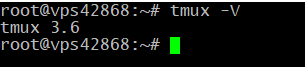
2. Creating a New Session
To start tmux, run:tmuxTo create a session with a specific name, use the -s option:tmux new -s migrationIn this example, a session named migration is created.You can run regular Linux commands inside the session, for example:
top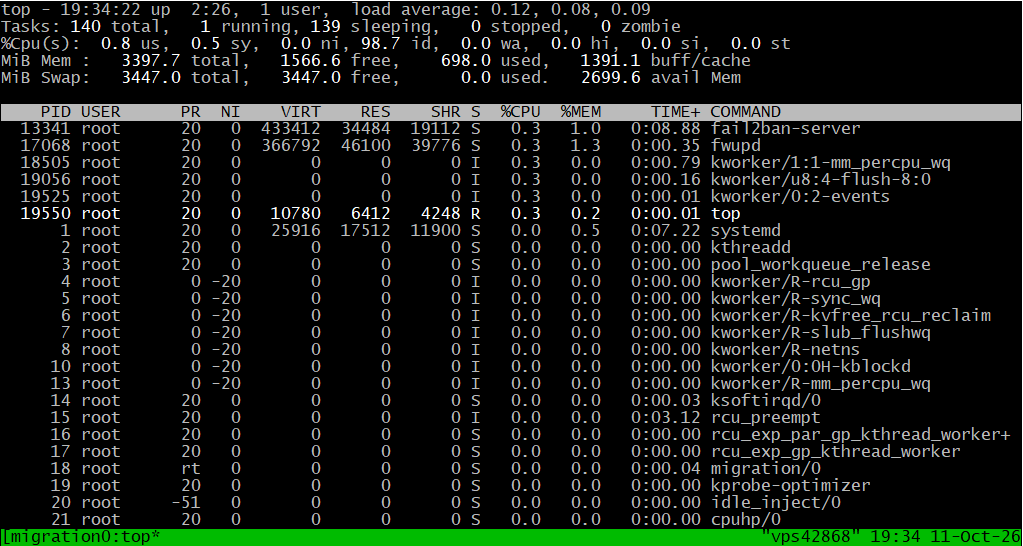
Alternatively, you can start copying files:
rsync -avh /source/ /destination/A tmux session operates independently of the SSH client connection. Therefore, when you detach from the session, the processes running inside it generally continue to run.3. Detaching from a Session
To leave a session without terminating it, use the following keyboard shortcut:- Press Ctrl+B.
- Release the keys.
- Press D.
You will return to the regular SSH command prompt, while processes inside tmux continue running.
Do not confuse detaching from a session with the exit command. The latter terminates the current shell and, if it is the last shell in the session, may cause the session to close and the running task to stop.
4. Listing Sessions
To view existing tmux sessions, run:tmux lsExample output:
In this example, two sessions exist: migration and update.
If there are no sessions, the command will report that no sessions are available.
5. Reconnecting to a Session
To return to a previously created session, run:tmux attach -t migrationReplace migration with the name of the session you want to access.If you need to attach to the only available session, you can use:
tmux attachAfter reconnecting, you will see the terminal's current state and can continue working with the running task.6. Running a Task in a Detached Session
If you need to start a long-running operation and immediately return to the SSH command prompt, create a session in detached mode:tmux new-session -d -s backupThis command creates a session named backup without attaching the current terminal to it.To access the session, run:
tmux attach -t backupThen start the required task. For example:rsync -avh --progress /var/www/ /mnt/backup/www/Once the command starts running, detach by pressing Ctrl+B, followed by D. The file transfer will continue without requiring you to keep the SSH connection open.Running a Command When Creating a Session
You can also run a command directly when creating the session:tmux new-session -d -s backup 'rsync -avh --progress /var/www/ /mnt/backup/www/'In this case, rsync starts inside the backup session in detached mode.To monitor the task, attach to the session:
tmux attach -t backupKeep in mind that if the command finishes and the shell exits, the session may also disappear. For long-running operations, it is therefore convenient to create a session, attach to it, start the command manually, and then detach.7. Working with Multiple Windows and Panes
tmux allows you to work with multiple terminals within a single session.Common keyboard shortcuts:
| Keyboard Shortcut | Action |
|---|---|
| Ctrl+B, then C | Create a new window |
| Ctrl+B, then N | Switch to the next window |
| Ctrl+B, then P | Switch to the previous window |
| Ctrl+B, then 0–9 | Switch to a window by number |
| Ctrl+B, then % | Split the pane vertically |
| Ctrl+B, then " | Split the pane horizontally |
| Ctrl+B, then an arrow key | Switch between panes |
| Ctrl+B, then D | Detach from the session |
| Ctrl+B, then ? | Display the keyboard shortcut help |
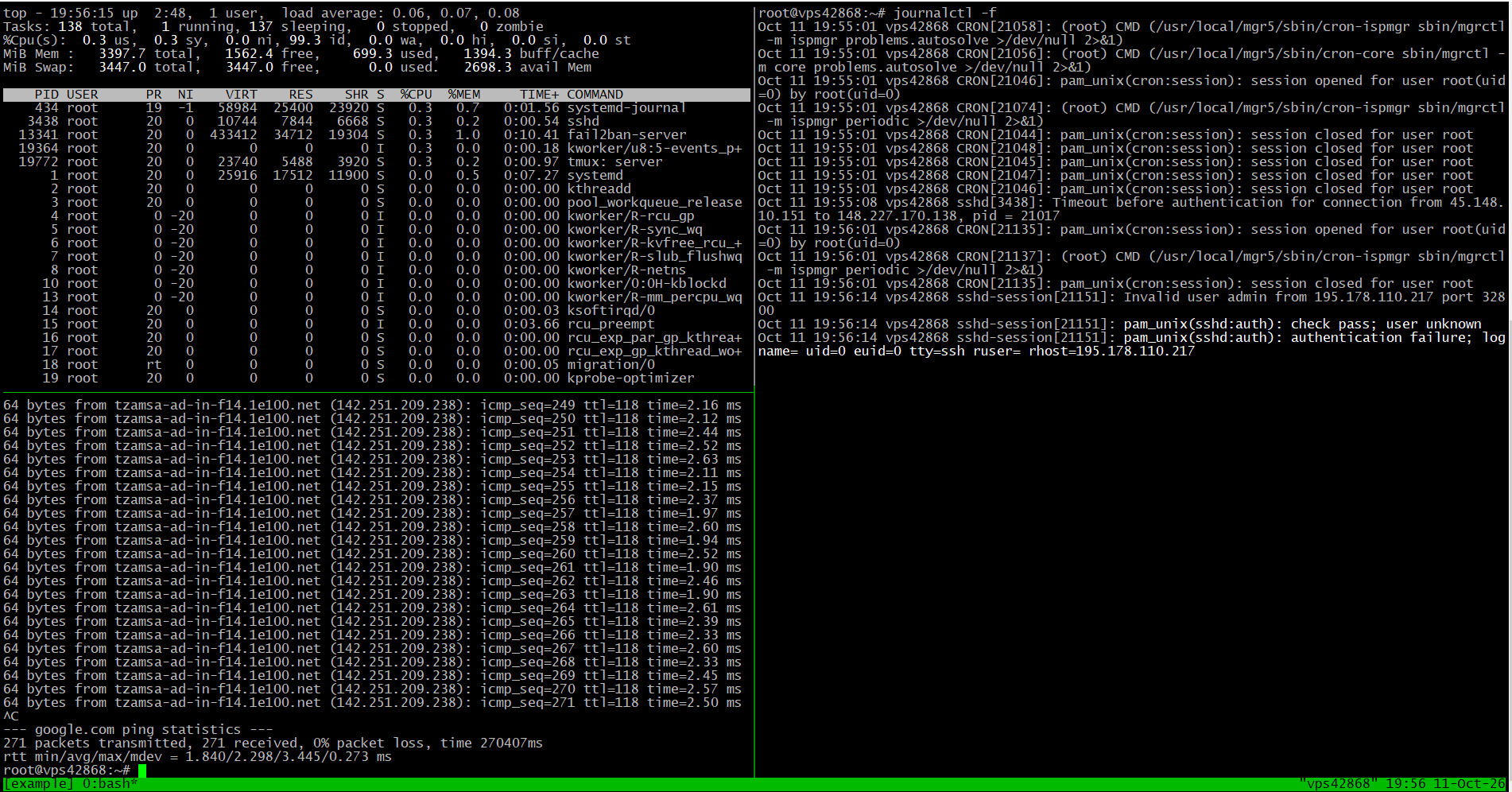
8. Terminating a Session
To terminate the current shell inside tmux, run:exitIf this is the last shell in the last window, the session will terminate.To forcibly terminate a specific session, use:
tmux kill-session -t backupTo terminate all tmux sessions belonging to the current user, run:tmux kill-serverWarning: Terminating a session may stop the processes running inside it. Before executing these commands, make sure that all important tasks have finished.9. What to Do If the SSH Connection Drops
If the SSH connection unexpectedly drops, reconnect to the server and check the list of sessions:tmux lsIf the required session still exists, reconnect to it:tmux attach -t cdn-migrationIf the session is missing, the task may have finished, the session may have been closed, or the tmux server may have stopped.To check for remaining processes, for example, use:
pgrep -af rsyncIf necessary, check the system logs and server status. Do not restart the file transfer until you have confirmed that the previous operation is no longer running.10. tmux vs. screen: A Comparison
screen is another terminal multiplexer that also allows you to preserve terminal sessions when the SSH client disconnects and reconnect to them later.Both tools are suitable for running long-running tasks on Linux servers. Their main differences lie in window and pane management, configuration, and typical workflows.
| Feature | tmux | screen |
|---|---|---|
| Continue working after SSH disconnection | Yes | Yes |
| Reconnect to a session | Yes | Yes |
| Multiple windows in one session | Yes | Yes |
| Split the terminal into panes | Yes | Yes |
| Flexible interface and keyboard shortcut customization | Yes | Yes, but the configuration approach differs |
| Named sessions | Yes | Yes |
| Support on older systems | Depends on version availability | Commonly found on older systems |
Common tmux and screen Commands
| Action | tmux | screen |
|---|---|---|
| Create a named session | tmux new -s work | screen -S work |
| List sessions | tmux ls | screen -ls |
| Detach from a session | Ctrl+B, then D | Ctrl+A, then D |
| Reattach to a session | tmux attach -t work | screen -r work |
| Terminate a session | tmux kill-session -t work | screen -S work -X quit |
Which Should You Choose: tmux or screen?
Choose tmux if:- You regularly administer servers over SSH.
- You need to work with multiple windows and panes.
- You want to customize your terminal environment.
- You frequently run several long-running tasks simultaneously.
- It is already installed on the server and provides all the features you need.
- You need a simple way to preserve a terminal session when SSH disconnects.
- You work with older systems where screen is already in use.
Conclusion
tmux is a convenient tool for administering Linux servers over SSH. It allows you to preserve terminal sessions when the client disconnects, manage multiple windows and panes, and run long-running operations without keeping the connection open continuously.For everyday use, it is sufficient to remember the following basic commands:
tmux new -s work

tmux ls

tmux attach -t work

tmux kill-session -t work

tmux -V
tmux and screen solve similar problems, so the choice depends on your needs and preferences. If you are setting up a new working environment, tmux is a good place to start. However, if you already use screen and it meets your requirements, there is no need to switch to another tool.