How to Configure Log Rotation on Linux with logrotate
21 Oct 2026, 01:55:49
System service, web server, and application logs continuously grow in size. If their growth is not monitored, they can consume all available disk space and cause server malfunctions.In Linux, logrotate is used to manage logs automatically. This utility can regularly rotate logs, compress old files, delete outdated records, and create new log files.
This article explains how to configure logrotate, create custom rotation rules, check the configuration, and troubleshoot common problems.
1. How logrotate Works
Log rotation is the process of renaming or archiving the current log file and then creating a new file to record events.For example, during rotation, access.log is renamed to access.log.1. If compression is enabled, the result depends on delaycompress: without it, the archive is immediately named access.log.1.gz; with it, access.log.1 remains uncompressed until the next rotation and is then compressed as access.log.2.gz. During subsequent rotations, old archives are deleted according to the configured rules.
A typical sequence is:
- Check whether rotation is required.
- Rename the current log or create a copy of it.
- Compress the archive if necessary.
- Notify the application that it needs to open a new log file.
- Delete old archives when the configured count or retention period is exceeded.
2. Installing logrotate
On most Linux distributions, logrotate is already installed. Check whether the utility is available with:logrotate --versionIf the command is not found, install the package.Debian / Ubuntu:
apt update

apt install logrotate
AlmaLinux / Rocky Linux / RHEL:dnf install logrotateYou can view the main configuration files with:ls -l /etc/logrotate.conf
ls -l /etc/logrotate.d/The main configuration file is /etc/logrotate.conf. The /etc/logrotate.d/ directory is intended for separate configurations, for example, for Nginx, Apache, or other services.3. Main logrotate Options
The following are some of the most commonly used directives.| Option | Purpose |
|---|---|
| daily | Rotate logs daily |
| weekly | Rotate logs weekly |
| monthly | Rotate logs monthly |
| size 100M | Rotate when the file size reaches or exceeds 100 MB (here, M means 1024 × 1024 bytes) |
| rotate 7 | Keep up to seven archived files |
| maxage 30 | Delete archives older than 30 days when rotation runs |
| compress | Compress archives, usually with gzip |
| delaycompress | Compress the previous archive during the next rotation |
| missingok | Do not treat a missing file as an error |
| notifempty | Do not rotate empty files |
| copytruncate | Copy the file and truncate the original without reopening it |
| create | Create a new file after rotation with the specified permissions and owner |
| dateext | Append the date to archive filenames |
| sharedscripts | Run a shared script once for the entire group of files |
For example, daily sets the rotation interval, while maxsize 100M allows rotation to happen earlier if the file exceeds the specified size when checked. The actual check frequency depends on the scheduler.
4. Configuring Rotation for an Individual Log
Suppose an application writes events to /var/log/myapp/app.log. The log needs to be rotated daily, seven archives should be retained, and old files should be compressed.Create a configuration file:
nano /etc/logrotate.d/myappAdd the following rules:/var/log/myapp/app.log {
daily
rotate 7
compress
delaycompress
missingok
notifempty
create 0640 myapp adm
}Here:
- daily — check whether rotation is needed every day;
- rotate 7 — keep up to seven archived files;
- compress — compress archives;
- delaycompress — leave the most recent archive uncompressed until the next rotation;
- missingok — do not report an error if the file is missing;
- notifempty — skip empty files;
- create 0640 myapp adm — create a new file with permissions 0640, owned by myapp and assigned to the adm group.
The create directive only creates a new file. If the application cannot reopen its log by itself, it will continue writing to the old file. In that case, add a postrotate block with a command that makes the application reopen its logs, or use copytruncate.
Directory permissions and the su directive. If /var/log/myapp is not owned by root or is group-writable, logrotate will refuse to rotate the files and display a message such as:
skipping because parent directory has insecure permissions.To fix this, specify the user and group under which rotation should be performed:
/var/log/myapp/app.log {

    su myapp adm

    daily

    rotate 7

    compress

    delaycompress

    missingok

    notifempty

    create 0640 myapp adm

}
Example Result
Before rotation:/var/log/myapp/app.logAfter several rotations:
/var/log/myapp/app.logThe exact filenames and number of files depend on the options used and the rotation history.
/var/log/myapp/app.log.1
/var/log/myapp/app.log.2.gz
/var/log/myapp/app.log.3.gz
5. Configuring Rotation by File Size
For logs that grow quickly, daily rotation may not be sufficient. For example, a website with a high volume of requests can generate several gigabytes of access.log in a single day.Create a configuration:
/var/log/myapp/app.log {

    size 100M

    rotate 10

    compress

    missingok

    notifempty

    create 0640 myapp adm

}
In this case, logrotate will rotate the file when its size reaches or exceeds 100 MB at the time of a check, and it will keep up to ten archives.Important: size 100M does not trigger rotation immediately when the threshold is reached. Logrotate must be run by a scheduler to detect that the file has exceeded the threshold.
The standard timer or cron usually runs logrotate once a day. As a result, on a rapidly growing log, size and maxsize may take effect too late, allowing the file to grow far beyond the threshold. To check more frequently, run logrotate every hour. On systems using systemd, override the timer:
systemctl edit logrotate.timerand add:[Timer]
OnCalendar=hourlyFor cron, place a script in /etc/cron.hourly/ and add the hourly directive to the log configuration if an hourly interval is required, or use maxsize.If you need daily rotation with an additional size limit, you can use:
/var/log/myapp/app.log {

    daily

    maxsize 100M

    rotate 14

    compress

    missingok

    notifempty

    create 0640 myapp adm

}
maxsize 100M allows rotation to occur before the normal interval if the file is too large when checked. However, the log may exceed the threshold between logrotate runs.6. Rotating Nginx Logs
Nginx usually writes requests and errors to the following files:/var/log/nginx/access.logOn many distributions, Nginx rotation rules are already located in /etc/logrotate.d/nginx.
/var/log/nginx/error.log
Check them with:
cat /etc/logrotate.d/nginxExample of a custom configuration:/var/log/nginx/*.log {
daily
rotate 14
missingok
notifempty
compress
delaycompress
sharedscripts
postrotate
if [ -s /run/nginx.pid ]; then
kill -USR1 "$(cat /run/nginx.pid)"
fi
endscript
} After rotation, Nginx receives the USR1 signal so that it reopens its log files and continues writing to the new files.The path to the PID file depends on the system configuration. Before using this example, make sure /run/nginx.pid exists and contains the PID of the Nginx master process.
If the default rules are already configured, do not create a second configuration for the same files, as this can cause rotation conflicts.
7. What to Do If an Application Keeps Writing to the Old Log
A common problem occurs when logrotate renames a file, but the application keeps an open file descriptor for the old log.As a result, a new access.log is created, but data continues to be written to the archived file. Sometimes the old file has already been deleted from the directory but still occupies disk space.
Check for open deleted files with:
lsof +L1If the problem involves Nginx, it is usually enough to configure postrotate correctly and send the process a signal to reopen its logs.For some applications, you can use copytruncate:
/var/log/myapp/app.log {

    daily

    rotate 7

    compress

    copytruncate

    missingok

    notifempty

}
This option copies the current log to an archive and truncates the original file without requiring the application to be restarted.However, some log entries may be lost between copying and truncating. In addition, the application must open the log in append mode (O_APPEND). Otherwise, after the file is truncated, it will continue writing at its previous position, leaving “holes” filled with zero bytes at the beginning of the file. Therefore, for applications that support reopening logs, using the application's built-in mechanism is preferable; use copytruncate only when no other method is suitable.
8. How to Check the logrotate Configuration
Always check the configuration before applying new rules.Checking Without Making Changes
logrotate -d /etc/logrotate.confThe -d option enables debug mode: the utility shows what actions it would take but does not perform rotation.To check a specific configuration file:
logrotate -d /etc/logrotate.d/myapp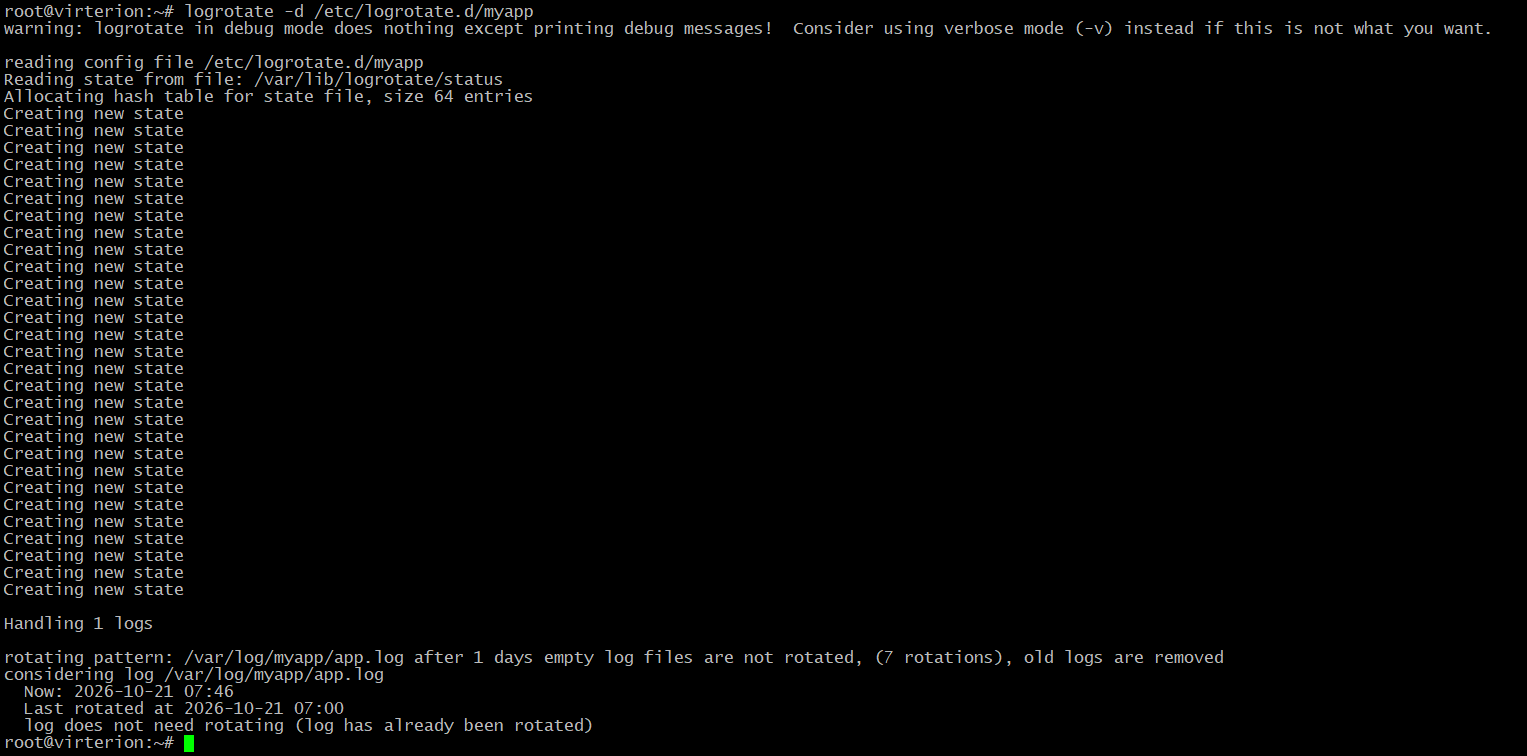
The -d mode checks the syntax and decision-making logic, but does not run prerotate and postrotate scripts. Errors in these scripts will only become apparent during actual rotation, so after the first production run, check that the application continues writing to the new file.
Forcing Log Rotation
For testing, you can run:logrotate -vf /etc/logrotate.d/myappOptions:- -v — verbose output;
- -f — force rotation regardless of the normal schedule.
When testing, note that running logrotate with a file from /etc/logrotate.d/ uses the standard logrotate state file unless you override it with the -s option. Therefore, forced rotation may affect subsequent scheduled checks.
9. When logrotate Runs
Logrotate is usually run automatically through cron or systemd.Check whether a daily job exists with:
ls -l /etc/cron.daily/logrotateOn systems using systemd, check the timer:systemctl status logrotate.timer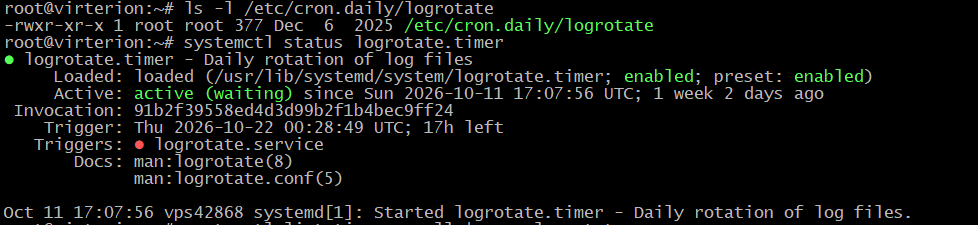
The timer is loaded and enabled, with the status active (waiting). It has been running since October 11 at 17:07:56 UTC, i.e., for a little over a week. This is the time when it was started. It triggers logrotate.service. The red dot next to the service indicates that it is currently inactive (which is normal for a oneshot service that has completed its execution).
You can also view the timer schedule:
systemctl list-timers --all | grep logrotate
The logrotate.timer timer is active and scheduled to run next at Thu 2026-10-22 00:28:49 UTC (in 17 hours). The last run was at Wed 2026-10-21 00:46:37 UTC, 6 hours ago. It runs once a day, overnight, and triggers logrotate.service.
Not every distribution uses logrotate.timer: on some systems, rotation is started by cron or another scheduler.
If automatic rotation is not working, check the logs:
journalctl -u logrotate.service --since "24 hours ago" --no-pagerIf cron is used, also check the system cron logs and make sure the corresponding job exists.10. Common logrotate Configuration Errors
Logs are not rotated — check the configuration syntax, logrotate state, run schedule, and file permissions.The output contains “skipping because parent directory has insecure permissions” — the log directory is not owned by root or is group-writable. Add the su directive with the user and group, or fix the directory permissions.
The application stops writing logs after rotation — make sure the new file is created with the correct owner and permissions and that the application reopens the log.
Archives take up too much space — reduce the number of retained copies, enable compression, and set a retention period if necessary.
Log files continue growing without limits — check whether logrotate runs frequently enough. If necessary, use maxsize and an appropriate schedule.
The “duplicate log entry” error appears — the same file may be specified in multiple configurations. Find the duplicate rules and keep only one.
Disk space was not freed after deleting an old log — check lsof +L1: a process may still have the deleted file open.
Conclusion
Logrotate helps automatically control log sizes, save disk space, and retain event history for a specified period.For most servers, daily rotation, a limit on the number of archives, and compression are sufficient. For logs that grow quickly, consider setting an additional size threshold and checking how the application handles log-file renaming.
After configuration, make sure rotation runs automatically, new files are created with the correct permissions, and archives are actually deleted according to the configured rules.